
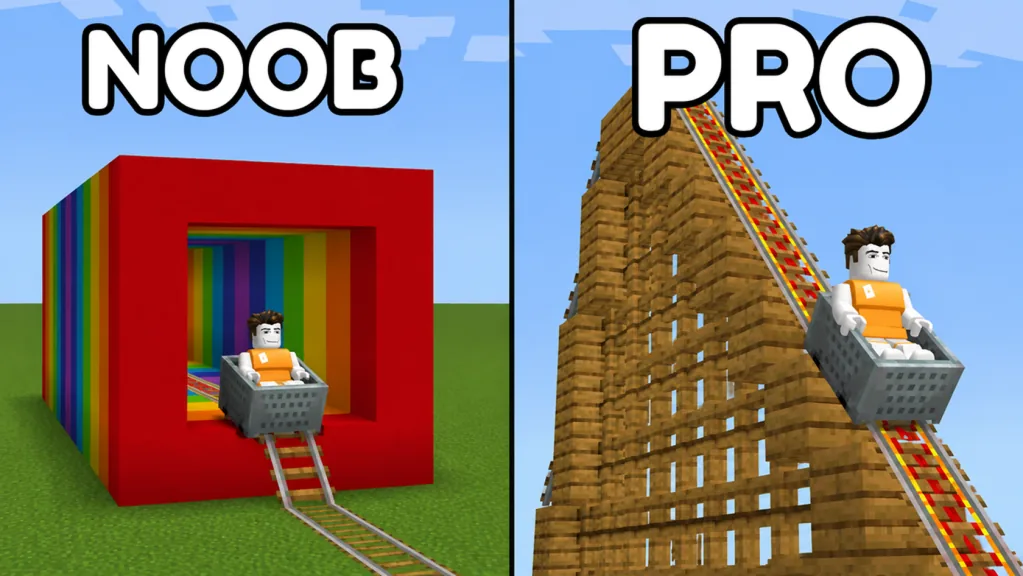
Find the right category before choosing a piece
Open BLOCKS, inspect CATEGORY, and use TRACK for rails and Minecart or BUILDING for construction materials. Search Items helps narrow the catalog when you know the item you want. After selecting a piece, check its preview before placing it near your existing work.
Get comfortable finding the same part again in BLOCKS. If you change the selected rail between tests, you also change what you are comparing. Check the item name before you place the next sample.
Read TRACK and BUILDING as different jobs
Use TRACK when you are working on the ride itself. Switch to BUILDING for wooden blocks and other materials around the route.
| Catalog area | Recognizable entries or features | Useful first task |
|---|---|---|
| TRACK | Rail, chain rail, red-and-gold rail, Minecart | Choose a simple rail and cart for testing |
| BUILDING | Wooden and other building materials | Choose a material for a small structure |
| Search Items | Search field within the item panel | Look for an item by its displayed name |
| CATEGORY | Category selection | Return to the relevant part of the catalog |
The September 17, 2026 interface displayed TRACK (4) and BUILDING (63). Read the counts on your current panel rather than treating those numbers as a permanent catalog limit.
Compare a red-and-gold rail with plain Rail on the same small route before choosing it for a larger build. Use the track types guide to test its effect rather than judging by color.
Use search to recover a known selection
Start with a short recognizable name such as Rail or Minecart. Read the returned item labels, choose the intended entry, and inspect what is selected before placing anything.
If the entry you expect is missing, shorten the search text and check the current category. Clear the search and browse the catalog directly. Check the item’s current availability and any unlock terms before deciding it has gone or needs a purchase.
Keep a simple reference for a project you plan to revisit. A screenshot of the selected item’s label and appearance can help you choose the same part during the next building session. This is especially useful when several rails look similar at a glance.
Check the preview away from your main build
After choosing a piece, move to a clear part of the grid and inspect the placement preview. Pay attention to the shape and direction you are about to add.
Check one sample before continuing:
- Choose one item from the relevant category.
- Read its displayed name and compare its icon with the preview.
- Place a sample in a clear area using the current on-screen prompts.
- Inspect the result from more than one angle.
- Return to BLOCKS if you selected a different piece than intended.
For a rail, continue with a short test route. For a building material, try a small arrangement before decorating a large section. Keep the sample nearby as a reference for the pieces you add next.
Keep your working selection simple
Do one pass with rails, then a separate pass with construction materials. Switching repeatedly between route building and decoration makes it easier to lose track of what you are selecting.
Before returning to the track, check the current item again. Before removing anything, check the editing control and save the version you want to keep. Selecting a material, removing a piece, and clearing a build are different actions.
Ready to place the parts? Follow the straight track guide for rails or the decoration guide for the surrounding blocks.
FAQ
Where is the blocks inventory?
Look for BLOCKS beside the workspace. It opens the item panel containing Search Items and CATEGORY.
Which category contains Minecart?
Minecart is listed in TRACK alongside the rail entries. Check the current label before selecting it.
Does BUILDING always contain 63 items?
That count belongs to the September 17 interface. Use the number displayed in your current catalog.
What should I do if search cannot find a piece?
Shorten the text, check the selected category, and browse its entries. Compare the visible labels rather than assuming an unlock or purchase requirement.